
To lock adult channels on IPTV, set a parental PIN in your player app, then lock the whole adult categories, not just single channels. In IPTV Smarters Pro that is Settings → Parental Control; in TiviMate it is Settings → Parental control. Then add a device-level lock (Fire TV, Samsung or LG) so nobody can open the app or change its settings without a PIN.
If you share a TV with children or guests, knowing how to lock adult channels on IPTV properly matters more than any channel list. The good news: it takes about five minutes, and once it is done the 18+ categories simply don’t open without your code. This guide covers the two most popular player apps, then the extra lock on Firestick, Samsung and LG, and finally how to test it.
The three layers of a proper lock
| Layer | What it stops | Where you set it |
|---|---|---|
| 1. Category lock | Opening any channel in the adult groups | Player app parental settings |
| 2. Settings lock | Someone switching the lock off | Player app (PIN on settings) |
| 3. Device lock | Opening the app at all | Fire TV, Samsung or LG settings |
Most people stop at layer 1 and lock a few channels. That leaves new channels unlocked the next time the list updates, which is why locking whole categories is the key step.
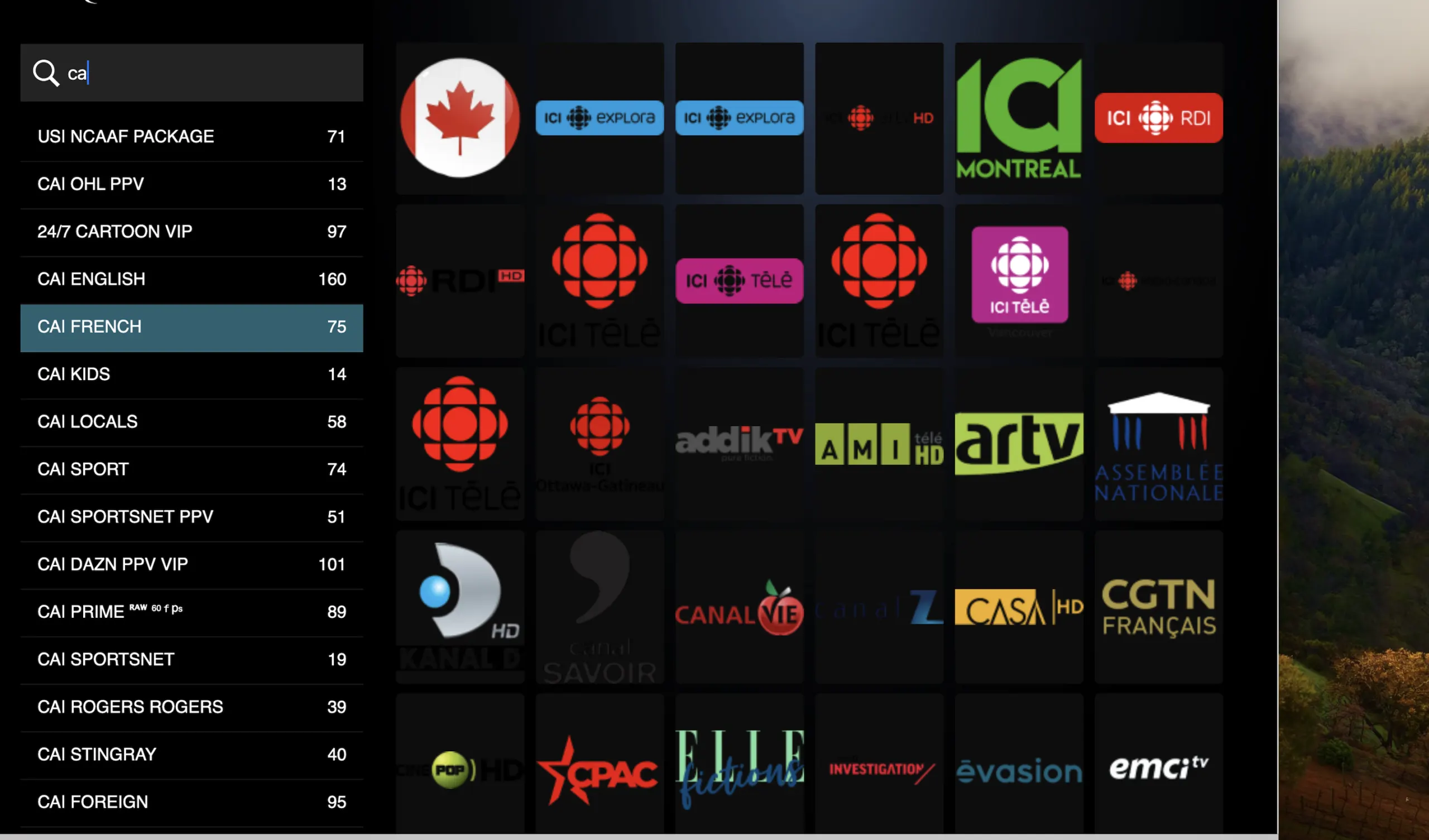
How to lock adult channels on IPTV Smarters Pro
- Open IPTV Smarters Pro and go to Settings (the gear icon on the home screen).
- Choose Parental Control. The first time, it asks you to create a password or PIN. Pick one that isn’t a birthday.
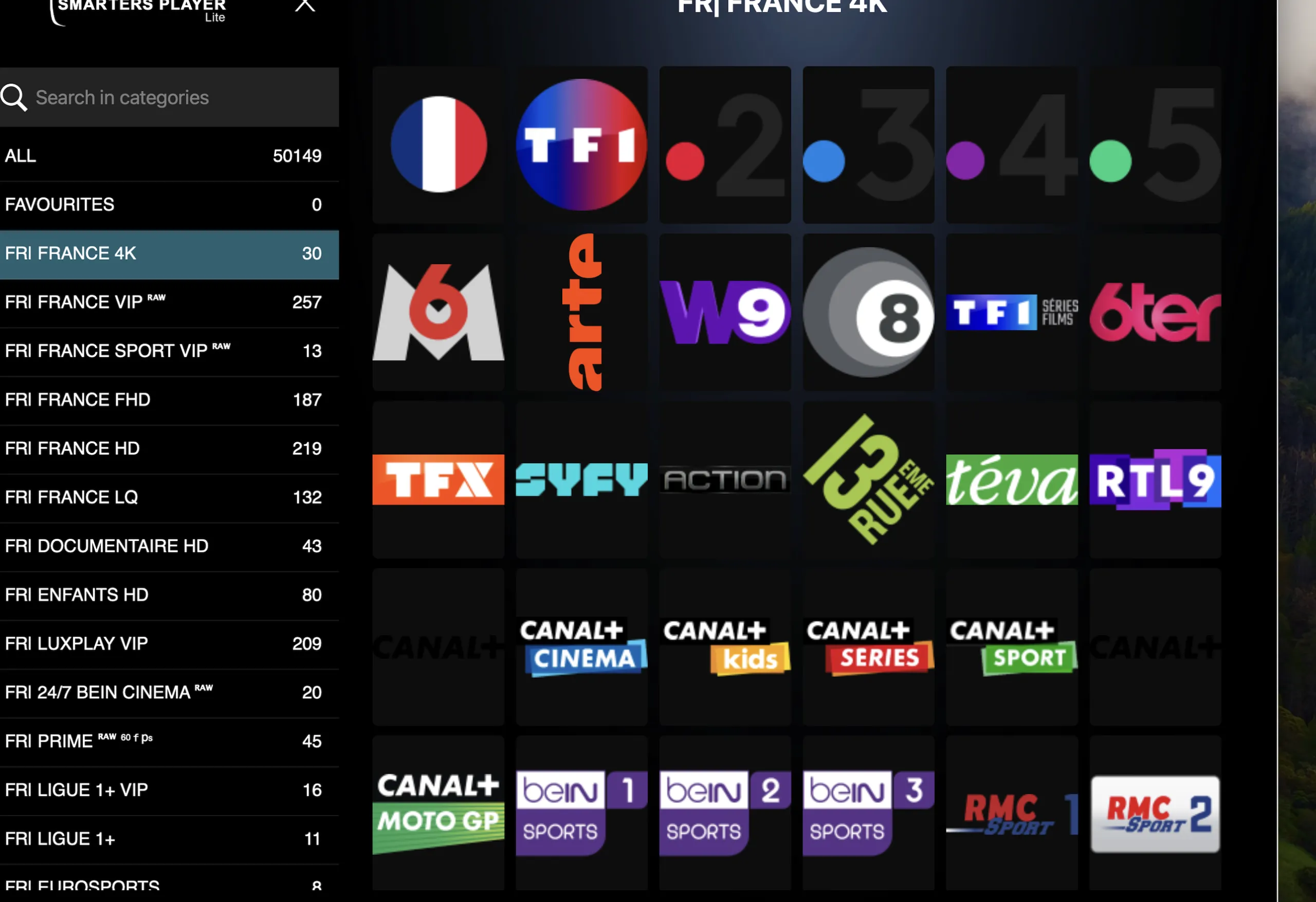
- Open the Live tab inside Parental Control and tick every category starting with “XXX”, “18+” or “Adult”.
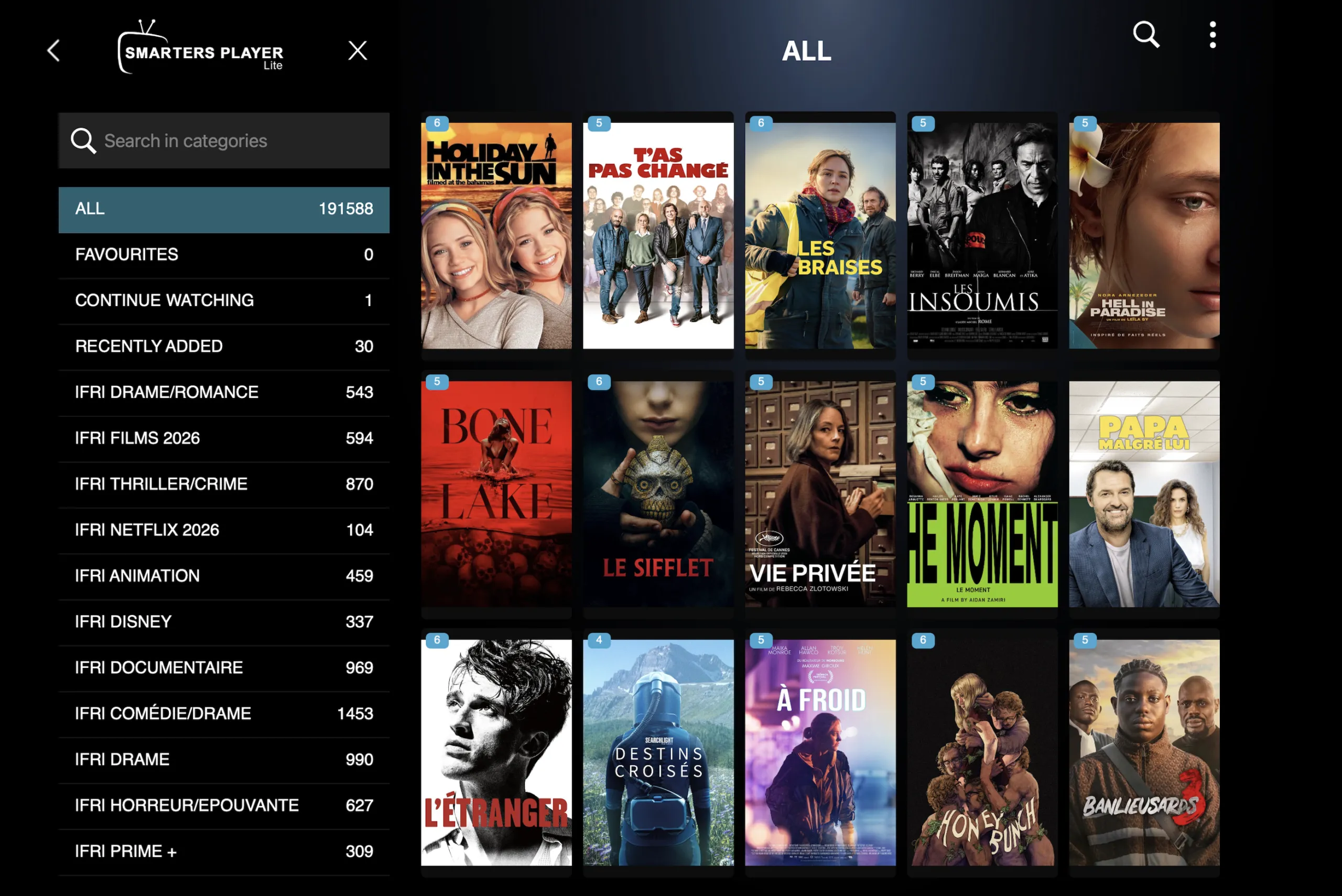
- Repeat in the Movies and Series tabs for the adult VOD categories.
- Go back to the home screen. The locked categories now ask for the PIN before they open.
Menu names vary slightly between app versions. If you don’t see “Parental Control”, look for “Parental Lock” in the same Settings screen.
How to lock adult groups in TiviMate
- Open Settings → Parental control and set a PIN.
- In the channel list, long-press the adult group name and choose Lock. Do this for every adult group.
- Back in Parental control, switch on the option to require the PIN for settings, so the lock can’t simply be turned off.
- Optionally, hide the adult groups instead: Settings → Playlists, select your playlist, then hide the groups in the groups list.
Add a device lock
Amazon Fire TV and Firestick
Go to Settings → Preferences → Parental Controls, switch them on and set a Fire TV PIN. From then on, opening apps from certain menus and making purchases asks for the PIN. It is a useful second layer on a shared Firestick.
Samsung smart TVs
Go to Apps, highlight IPTV Smarters Pro, open the options menu and choose Lock/Unlock. The TV asks for its PIN (0000 by default; change it in the TV’s security settings) each time the app opens. Menu wording varies by model year; Samsung’s support pages list the exact path for your TV.
LG smart TVs
Go to Settings → General → Safety (called “Parental Controls” on some models), switch it on, then use Application Locks to lock IPTV Smarters Pro.
Test the lock in two minutes
- Close the app fully and reopen it. The adult categories should ask for the PIN.
- Try opening an adult film from the search bar. It should also ask for the PIN.
- Try changing the parental settings. It should ask for the PIN.
- Reload the channel list, then check again: newly added channels in a locked category stay locked.
Our 18+ section starts locked
On TrustView TV the adult section is off until you ask for it, and we walk you through setting the PIN when we switch it on. It is included with every plan, and every plan has a 60-day money-back policy.
- CH101Starter1 year1 screen
- 55,000+ international channels
- 100,000+ films & series
- Full 4K UHD library
- 14-day catch-up
- WhatsApp support 7 days
- FREE VPN link included
- Works on all apps
- Parental control (PIN)
- TV guide (EPG) included
- 3,000 adult channels and movies
£59per yearMessage us on WhatsApp£228· Save 74% - CH102HouseholdMost chosen1 year2 screens
- 55,000+ international channels
- 100,000+ films & series
- Full 4K UHD library
- Priority WhatsApp reply
- Multi-device profile sync
- FREE VPN link included
- Works on all apps
- Parental control (PIN)
- TV guide (EPG) included
- 6,000 adult channels and movies
£89per yearMessage us on WhatsApp£288· Save 69% - CH103Family1 year3 screens
- 55,000+ international channels
- 100,000+ films & series
- Viewer profiles
- Setup help on WhatsApp
- Priority tech support
- FREE VPN link included
- Works on all apps
- Parental control (PIN)
- TV guide (EPG) included
- 6,000 adult channels and movies
£119per yearMessage us on WhatsApp£348· Save 66% - CH104LifetimeMost savingsLifetime+Unlimited
- 55,000+ international channels
- Priority WhatsApp support
- Free Firestick 4K posted
- Lifetime support, no renewals
- Access to the private Premium Telegram group
- FREE VPN link included
- Works on all apps
- Parental control (PIN)
- TV guide (EPG) included
- 9,000 adult channels and movies
£299onceMessage us on WhatsApp£1,499· Save 80%
Prices are shown in pounds sterling (£). You can pay from any country by card, PayPal, Revolut or crypto, and your bank converts the amount automatically.
Common questions
What if I forget my parental PIN?
In most player apps the PIN is stored on the device. Removing and re-adding your login clears it; then set a new PIN. Message us if you need your login details again.
Does locking on one device lock it everywhere?
No. Parental settings are saved per device, so set the PIN on each TV, stick and phone that uses your login.
Can I hide the adult categories completely instead of locking them?
Yes, both IPTV Smarters Pro and TiviMate let you hide categories. Locking is safer on shared devices, because hidden groups can be unhidden in settings without a PIN unless settings are locked too.
Can you remove the 18+ section from my account?
Yes. Ask on WhatsApp and we will switch it off. See also adult channels not working and our adult IPTV page.
Ready when you are
Message us on WhatsApp, pick a plan and ask for the 18+ section. Your login arrives on WhatsApp after payment. 60-day money-back on every plan.